
The Manual
The Labyrinth of Time™
is an adventure game set in a wondrous maze
created by the spirit of Daedalus, master
craftsman of the ancient world. This maze
is more than it seems and stretches through both space and
time. Daedalus was forced to build this
labyrinth by the power-mad King Minos, who hopes to use its expansive
powers to rule the universe in every era of time! Your mission is to
destroy this labyrinth before King Minos can complete his
nefarious plot.
Although The Labyrinth of Time can be
played directly from the game CD-ROM without any installation, we
recommend that you install the game on your computer's hard drive if
there is sufficient space. The game requires 490MB of hard drive
space to install. The instructions below detail how to both play the
game without installing and how to install the game, if you choose.
Just follow the appropriate instructions for your computer's operating
system.
Windows®
Installation
1. Place The Labyrinth of Time disc in your computer’s CD-ROM drive. The set-up program should automatically run. If this does not occur, double-click on the LABYRINTH icon under My Computer, open the Windows folder, and double-click on the play.exe icon.
2. To play with game without installing on a hard drive, just click the Play from CD button. The game CD must be in the drive at all times while playing the game without installing on a hard drive.
3. To install the entire game on your hard drive, click the Install button. Follow the prompts to complete the installation. Once installed the game can be played without the CD.
1. Place The Labyrinth of Time disc in your computer’s CD-ROM drive. Double-click on the LABYRINTH icon when it appears to view the disc's contents.
2. To play with game directly from the CD, just open the Macintosh folder on the CD and double-click on The Labyrinth of Time icon. The game CD must be in the drive at all times while playing the game without installing on a hard drive.
3. To install the game on your hard drive, open the Installation Folder (inside the Macintosh folder) and drag The Labyrinth of Time icon inside to the Applications folder (or any other place) on your hard drive. Next, double-click on the icon of the game on your hard drive. The game will detect that it needs to copy its data files from the CD and prompt you to confirm you want the files copies. Select the Install button to continue. Once copying is complete, the game can be played without the CD.
Linux®
Installation
1. Start X-Windows. Open a terminal window to obtain a shell prompt.
2. As an optional step become root by typing su at the shell prompt, followed be the root password. Although this step is optional, you must be root to install the game in a system directory like /usr/local/games.
3. Insert The Labyrinth of Time disc. Be sure that the disc is mounted. Some distributions can auto-mount a CD, while others might require that you manually mount the CD. Typing the command mount /mnt/cdrom or mount /cdrom will mount the CD on most systems. See your distribution's documentation as needed.
4. To play the game directly from the CD type sh /mnt/cdrom/Linux/play.sh at the shell prompt. Once again, the mount point may be /cdrom or another location. You must keep the game CD in the drive at all times while playing the game.
5. To install the game on your hard
drive, type sh /mnt/cdrom/Linux/setup.sh at the shell prompt.
Once again, the mount point may be /cdrom or another location.
Follow the prompts to complete the installation. Once installed the
game can be played without the CD.
6. Some distributions may allow you to
view the contents of the CD as icons. In that case you may be able to
double-click on the icons for play.sh
or setup.sh to perform their
respective functions.
The first time you play The Labyrinth of Time you will be presented with a small configuration window where you can control a couple of settings.
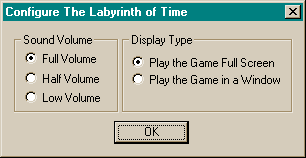
Windows configuration window shown, Mac OS X and
Linux windows are similar.
Sound Volume: Allows you to set the initial audio volume for the game's music and sound effects. The three options are Full Volume (loud), Half Volume (soft) and Low Volume (near silence).
Display Type: The default setting is to play the game full screen. Alternately, the game can played in a 640 by 480 pixel window.
Once the settings are
acceptable, click the OK button.
To show the configuration window at a later time, hold the shift key
down while starting the game. Linux users should instead append the
option -config at the end of
the command used to start the game.
If you alter these
settings during play, the changes will only be remembered if you press
the Z key.
The first time you play
the game you should watch the introduction. Press the Space key to
advance to the next screen after reading each message. The next time
you play the game you can skip the introduction by pressing the
Esc (Escape) key. The credits cannot be skipped.
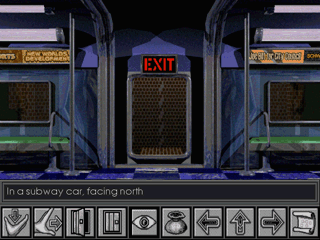
 Take Object –
Click on this button to indicate you want to try to take an object that
is visible in the Scene. You can then click on the object.
Take Object –
Click on this button to indicate you want to try to take an object that
is visible in the Scene. You can then click on the object. Move Object –
Click on this button
to indicate you want to try to move or otherwise manipulate an object
that is visible in the Scene. You can then click on the object.
Move Object –
Click on this button
to indicate you want to try to move or otherwise manipulate an object
that is visible in the Scene. You can then click on the object.
 Open Door –
Click on this button to indicate you want to try to open a door or
other object that is visible in the Scene. You can then click on the
door or object.
Open Door –
Click on this button to indicate you want to try to open a door or
other object that is visible in the Scene. You can then click on the
door or object. Close Door –
Click on this button to indicate you want to try to close a door or
other object that is visible in the Scene. You can then click on the
door or object.
Close Door –
Click on this button to indicate you want to try to close a door or
other object that is visible in the Scene. You can then click on the
door or object. Look At Object
– Click on this button to have a close-up look at an object. Click on
the object to complete the action. Sometimes a close-up look is
required to interact with an object.
Look At Object
– Click on this button to have a close-up look at an object. Click on
the object to complete the action. Sometimes a close-up look is
required to interact with an object. Switch to Alternate
Display – Click this button to switch to the Alternate (or Inventory) Display. See below for details.
Switch to Alternate
Display – Click this button to switch to the Alternate (or Inventory) Display. See below for details.

 Turn Left, Walk
Forward, Turn Right – These three buttons allow you to explore
the Labyrinth.
Turn Left, Walk
Forward, Turn Right – These three buttons allow you to explore
the Labyrinth.
 Show Map –
Daedalus provided you with a magical map that keeps track of where
you've been. It also has other useful properties. Click this button to
show the map.
Show Map –
Daedalus provided you with a magical map that keeps track of where
you've been. It also has other useful properties. Click this button to
show the map.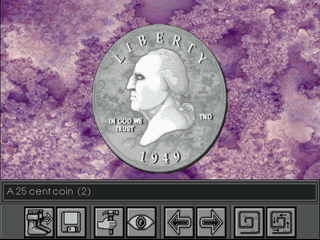
 Switch to Main Display
–
Click this button to return to the Main Display where you can walk
around.
Switch to Main Display
–
Click this button to return to the Main Display where you can walk
around.
 Load / Save Game
–
Click this button to access the screen where you can load or save a
game.
Load / Save Game
–
Click this button to access the screen where you can load or save a
game.
 Use
Inventory Item
–
Click this button to use the current inventory item. If the item is
to be used on an object in the Scene, the Inventory Item view will be
replaced by the Scene view so you can click on an object.
Use
Inventory Item
–
Click this button to use the current inventory item. If the item is
to be used on an object in the Scene, the Inventory Item view will be
replaced by the Scene view so you can click on an object.
Look
at Scene -
Click
this button to switch between Inventory Item and Scene view.
Previous Item –
Click this button to go to your previous inventory item.
Next Item – Click this button to go to your
next inventory item.
 Drop Bread Crumbs – The map left
for you by Daedalus has an interesting power: it can drop virtual bread
crumbs. Click
this button to start a trail of bread crumbs from your current
location. Later you can choose to follow your trail back to this
location (see next button). An icon will appear in the
upper-right corner of the Scene while bread crumbs are being dropped. Warning: If you click this button
while dropping bread crumbs, your old trail will be forgotten and a new
trail will be started from your current location.
Drop Bread Crumbs – The map left
for you by Daedalus has an interesting power: it can drop virtual bread
crumbs. Click
this button to start a trail of bread crumbs from your current
location. Later you can choose to follow your trail back to this
location (see next button). An icon will appear in the
upper-right corner of the Scene while bread crumbs are being dropped. Warning: If you click this button
while dropping bread crumbs, your old trail will be forgotten and a new
trail will be started from your current location.
 Follow Bread Crumbs
– Click this button to automatically follow your virtual bread crumb
trail back to the start. Note that you can only follow the trail
through normal passageways. You have to open doors, etc. There is also
a “run instead of walk” mode for following bread crumbs, but this is
available only as a keyboard shortcut. Clicking any button or key while
following the trail will abort this action, but the remaining part of
trail back will not be forgotten.
Follow Bread Crumbs
– Click this button to automatically follow your virtual bread crumb
trail back to the start. Note that you can only follow the trail
through normal passageways. You have to open doors, etc. There is also
a “run instead of walk” mode for following bread crumbs, but this is
available only as a keyboard shortcut. Clicking any button or key while
following the trail will abort this action, but the remaining part of
trail back will not be forgotten.
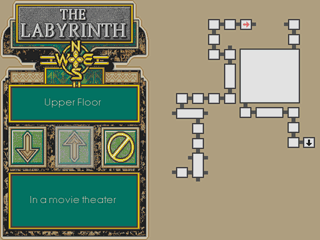
This screen shows the locations you
have visited. Clicking on a location will show its name. Your current
location is marked with a glowing red
arrow. A black arrow
indicates a passage between levels. Sometimes areas are shown as a
large white block -- click on the block to view the interior of the
area. Use the Up and Down arrows to move between levels or exit the
interior of an area.
 Previous Page of Text
- Read the previous page of the text being displayed.
Previous Page of Text
- Read the previous page of the text being displayed. Next Page of
Text - Read the next page of the text being displayed.
Next Page of
Text - Read the next page of the text being displayed. Previous Topic
- Return to the previous topic after viewing a sub-topic.
Previous Topic
- Return to the previous topic after viewing a sub-topic. Exit From Using
Console - Click to indicate you are done using the informational
console.
Exit From Using
Console - Click to indicate you are done using the informational
console.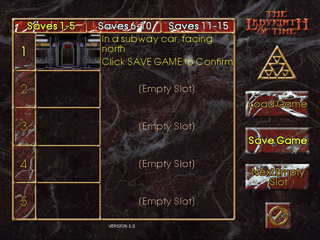
This screen allows you to save and load
games. There are 15 saved game slots available. To save to the next
empty slot, click the Next Empty Slot
button and then click the Save Game
button. You can save over an existing save game by clicking on that
game in the list and then clicking Save Game. To load an existing saved
game, click on the game to load in the list and then click on the Load Game button. You can abort
loading or saving by clicking the cancel button at the bottom-right.
There are some actions you can perform
in The Labyrinth of Time that will create a situation where you cannot
successfully complete the game. If you think you have become hopelessly
stuck, you should load a previously saved game and continue from there.
This implies that you should save the game occasionally just to be sure
that you can finish the game without starting over.
To help avoid getting stuck, we offer a
few helpful hints. Knowing these hints should not adversely affect your
enjoyment of the game, but please skip ahead to the Keyboard Shortcut
section if you don't want any help.
You start the game with two quarters --
the change from buying your subway ticket. Be careful how you use these
as it may be difficult to acquire more.
Wouldn't it be terrible to be in that
rustic jail cell without a way out? We think so.
There are two exits from the subway
train, one an open passageway, the other sealed. Be sure you have a
light source before you investigate what is behind the sealed door
(once you unseal it, of course).
| T | Take Object |  |
Turn Right |
| M | Move or Manipulate Object | P | Show Map |
| O | Open Door or Object | Esc | End Close-up Look |
| C | Close Door or Object | B | Start Dropping Virtual Bread Crumbs |
| L | Look at Object Close-up | F | Follow Virtual Bread Crumbs |
| I | Switch to Alternate (Inventory) Display | R | Run While Following Bread Crumbs |
 |
Turn Left | Q | Quit Game With Confirmation |
 |
Walk Forward | (Press Y to Confirm Quit Game) |
| M | Switch to Main (Action) Display | |
Next Inventory Item |
| G |
Load or Save Game | B | Start Dropping Virtual Bread Crumbs |
| U | Use Inventory Item | F | Follow Virtual Bread Crumbs |
| L | Look at Scene (or Back to Inventory) | R | Run While Following Bread Crumbs |
|
Previous Inventory Item |
Q | Quit Game With Confirmation |
Map Display
|
Up One Level | Esc | Exit Map Display |
 |
Down One Level |
| L | Load Game | |
Next Set |
| S | Save Game | |
Previous Saved Game |
| N | Next Empty Slot | |
Next Saved Game |
|
Previous Set | Esc | Cancel Load / Save Game |
Other Shortcuts
| [ | Lower the Sound Volume | Space | Skip to Next Text Message |
| ] | Raise the Sound Volume | Alt-F4 | Quit Immediately (Windows only) |
| F1 | Toggle To/From Full Screen |  |
Toggle Full Screen (Mac only) |
| Z |
Save Changes to Configuration
Settings |
General
Question:
When playing the game from the CD-ROM, occasionally the music repeats
itself (like a stuck phonograph or audio CD). How can I avoid this?
Answer: This best way to avoid
this is to install the game on your computer's hard drive.
Question:
Where is the version number of the game?
Answer: The version number is
found on the Load / Save Game Display below the save game list.
Question:
Where can I get the latest information about the game?
Answer: Point your web browser
to The Labyrinth of Time
web site (https://www.wyrmkeep.com/labyrinth).
Windows
Specific
Question:
When I press Alt-Tab while the game is running full screen, the desktop
appears and no game window is visible. How do I continue playing?
Answer: If you look in the task
bar you should see an entry for The Labyrinth of Time. Click on the
entry to restore the game and continue play.
Mac OS
X Specific
Question:
I tried to copy The Labyrinth of Time icon from the CD-ROM to my hard
drive, but the copy never completed. What happened?
Answer: There is a problem with
copying The Labyrinth of Time immediately after playing from the
CD-ROM. This is why we supply a second copy in the Installation
Folder inside the Macintosh folder on the CD-ROM. See the installation instructions for details.
Linux
Specific
Question:
When I try to run the install, an error is reported and then a
text-based (non-graphical) installation program starts? Is this OK?
Answer: What probably
happened is that the graphical installer could not find one of two
dynamic
link libraries it requires (libglade and libxml to be exact). Most
Linux distributions come with these libraries, but a customized Linux
system may not. A text-based installer is supplied to cover this case.
The game can be set-up using the text-based installer and still run
correctly in X-Windows.
Question:
When I try to run the game in Full Screen mode, the display appears as
a small rectangle in the middle of a black screen? How do I get the
game to fill the screen?
Answer: Your Linux
distribution's installer did not properly configure your X-Windows to
allow for 640 by 480 pixel screens. Check you distribution's
documentation on how to either change to a compatible display depth
that supports 640 by 480 pixel screens or add a new allowed resolution
to an existing display depth. Alternately you can hand edit the
X-Window configuration file XF86Config to add the required information
for a 640 by 480 pixel screen. Editing this file is not for the novice.
A HOWTO on configuring an X-Windows system can be found at the Linux
Documentation Project.
Question:
The audio in the game is choppy. What's wrong?
Answer: The game uses the
Simple DirectMedia Layer (SDL) library to play audio. On most computers
SDL will support multiple audio drivers, and the default driver for
your computer may be having problems buffering the game's audio. You
can tell SDL to use an alternate audio driver. Try running the game
using one of the following command lines:
SDL_AUDIODRIVER="esd" labyrinth
or
SDL_AUDIODRIVER="alsa" labyrinth
or
SDL_AUDIODRIVER="artsc"
labyrinth
If for some wacky reason you want to
uninstall the game from your hard drive, here are the instructions to
do so.
Windows®
Uninstall
1. Locate The Labyrinth of Time group in the Start menu and select the Uninstall The Labyrinth of Time
item. The uninstall program will run. (You can also use the Add/Remove Programs control panel to
do the same thing.)
2. To complete the uninstall you will
need to restart Windows.
Mac OS X Uninstall
1. Drag both The Labyrinth of Time and
The Labyrinth of Time Data icons to the trash. Empty the trash. You're
done.
2. If you are unable to empty the trash
because the Finder says a file is in use, restart you computer before
emptying the trash.
Linux®
Installation
1. Start X-Windows. Open a terminal window to obtain a shell prompt.
2. If you installed the game as root, become root again by typing su at the shell prompt, followed be the root password.
3. Type labyrinth
uninstall at the shell prompt. The uninstall program will run
and remove the game from your hard drive.
This copy
of The Labyrinth of Time ("the Software Product") and accompanying
documentation is licensed and not sold. This Software Product is
protected by copyright laws and treaties, as well as laws and treaties
related to other forms of intellectual property. Joseph O. Pearce
Jr. D.B.A. The Wyrmkeep Entertainment Co. or its subsidiaries,
affiliates, and suppliers (collectively "Wyrmkeep") own intellectual
property rights in the Software Product. The Licensee's ("you" or
"your") license to download, use, copy, or change the Software Product
is subject to these rights and to all the terms and conditions of this
Software License Agreement ("Agreement").
Acceptance
YOU ACCEPT AND AGREE TO BE BOUND BY THE TERMS OF THIS AGREEMENT BY
INSTALLING, USING, OR COPYING THE SOFTWARE PRODUCT. IF YOU DO NOT
AGREE TO ALL OF THE TERMS OF THIS AGREEMENT, YOU MUST NOT INSTALL, USE,
OR COPY THE SOFTWARE PRODUCT.
License Grant
This Agreement entitles you to install one copy of the Software Product
on each computer you own, although you are only allowed to use one copy
of the Software at a time. In addition, you may make one archival
copy of the Software Product. The archival copy must be on a
storage medium other than a hard drive, and may only be used for the
reinstallation of the Software Product. This Agreement does not
permit installation of the Software Product on any computer where you
cannot control the multiple simultaneous use of the Software; for
example, a configuration or system of computers that allows multiple
users.
Restrictions on Transfer
Without first obtaining the express written consent of Wyrmkeep, you
may not assign your rights and obligations under this Agreement, or
redistribute, encumber, sell, rent, lease, sublicense, or otherwise
transfer your rights to the Software Product.
Restrictions on Use
You may not decompile, "reverse-engineer", disassemble, or otherwise
attempt to derive the source code for the Software Product.
Restrictions on Alteration
You may not modify the Software Product or create any derivative work
of the Software Product or its accompanying documentation.
Derivative works include but are not limited to translations. You
may not alter any files or libraries in any portion of the Software
Product.
Limited Storage Medium Warranty
For a period of 90 days from the date of shipment or from the date that
you download the Software Product, as applicable, Wyrmkeep warrants
that when properly installed and used under normal conditions, the
storage medium on which the Software Product is shipped will be free of
material defects in material and workmanship.
Disclaimer of Warranties and Limitation of Liability
UNLESS OTHERWISE EXPLICITLY AGREED TO IN WRITING BY WYRMKEEP, WYRMKEEP
MAKES NO OTHER WARRANTIES, EXPRESS OR IMPLIED, IN FACT OR IN LAW,
INCLUDING, BUT NOT LIMITED TO, ANY IMPLIED WARRANTIES OF
MERCHANTABILITY OR FITNESS FOR A PARTICULAR PURPOSE OTHER THAN AS SET
FORTH IN THIS AGREEMENT OR IN THE LIMITED WARRANTY DOCUMENTS PROVIDED
WITH THE SOFTWARE PRODUCT.
Wyrmkeep makes no warranty that the Software Product will meet your
requirements or operate under your specific conditions of use.
Wyrmkeep makes no warranty that operation of the Software Product will
be secure, error free, or free from interruption. YOU MUST
DETERMINE WHETHER THE SOFTWARE PRODUCT SUFFICIENTLY MEETS YOUR
REQUIREMENTS FOR SECURITY AND UNINTERRUPTABILITY. YOU BEAR SOLE
RESPONSIBILITY AND ALL LIABILITY FOR ANY LOSS INCURRED DUE TO FAILURE
OF THE SOFTWARE PRODUCT TO MEET YOUR REQUIREMENTS. WYRMKEEP WILL
NOT, UNDER ANY CIRCUMSTANCES, BE RESPONSIBLE OR LIABLE FOR THE LOSS OF
DATA ON ANY COMPUTER OR INFORMATION STORAGE DEVICE.
UNDER NO CIRCUMSTANCES SHALL WYRMKEEP, ITS DIRECTORS, OFFICERS,
EMPLOYEES OR AGENTS BE LIABLE TO YOU OR ANY OTHER PARTY FOR INDIRECT,
CONSEQUENTIAL, SPECIAL, INCIDENTAL, PUNITIVE, OR EXEMPLARY DAMAGES OF
ANY KIND (INCLUDING LOST REVENUES OR PROFITS OR LOSS OF BUSINESS)
RESULTING FROM THIS AGREEMENT, OR FROM THE FURNISHING, PERFORMANCE,
INSTALLATION, OR USE OF THE SOFTWARE PRODUCT, WHETHER DUE TO A BREACH
OF CONTRACT, BREACH OF WARRANTY, OR THE NEGLIGENCE OF WYRMKEEP OR ANY
OTHER PARTY, EVEN IF WYRMKEEP IS ADVISED BEFOREHAND OF THE POSSIBILITY
OF SUCH DAMAGES. TO THE EXTENT THAT THE APPLICABLE JURISDICTION
LIMITS WYRMKEEP'S ABILITY TO DISCLAIM ANY IMPLIED WARRANTIES, THIS
DISCLAIMER SHALL BE EFFECTIVE TO THE MAXIMUM EXTENT PERMITTED.
Limitation of Remedies and Damages
Your remedy for a breach of this Agreement or of any warranty included
in this Agreement is the correction or replacement of the Software
Product. Selection of whether to correct or replace shall be
solely at the discretion of Wyrmkeep. Wyrmkeep reserves the right
to substitute a functionally equivalent copy of the Software Product as
a replacement. If Wyrmkeep is unable to provide a replacement or
substitute Software Product or corrections to the Software Product,
your sole alternate remedy shall be a refund of the purchase price for
the Software Product exclusive of any costs for shipping and
handling.
Any claim must be made within the applicable warranty period. All
warranties cover only defects arising under normal use and do not
include malfunctions or failure resulting from misuse, abuse, neglect,
alteration, problems with electrical power, acts of nature, unusual
temperatures or humidity, improper installation, or damage determined
by Wyrmkeep to have been caused by you. All limited warranties on
the Software Product are granted only to you and are
non-transferable. You agree to indemnify and hold Wyrmkeep
harmless from all claims, judgments, liabilities, expenses, or costs
arising from your breach of this Agreement and/or acts or
omissions.
Governing Law, Jurisdiction and Costs
This Agreement is governed by the laws of California, without regard to
California's conflict or choice of law provisions.
Severability
If any provision of this Agreement shall be held to be invalid or
unenforceable, the remainder of this Agreement shall remain in full
force and effect. To the extent any express or implied
restrictions are not permitted by applicable laws, these express or
implied restrictions shall remain in force and effect to the maximum
extent permitted by such applicable laws.
Contact Information
The Wyrmkeep Entertainment Co.
P.O. Box 1585
Costa Mesa, CA 92628-1585
Game Design and
Illustration
Bradley W. Schenck
Program Design and
Implementation
Michal Todorovic
Additional Artwork and
Voice-over
Allison Hershey
Linux / Mac OS X /
Windows Programming
Joe Pearce
Cover Art
Bradley W. Schenck
Manual and Other Loose
Ends
Joe
Pearce
Special Thanks
Leander Hasty, Bill Johnson, Robert
McNally, Ken Yeast